Showing posts with label Posts. Show all posts

Tuesday, 26 October 2010

How to remove a border from around a photo

quotes1
How to completely REMOVE the border that appears around a posted photo within a post on Blogger??
quotes2


This is easy to change! You will look for the code that you wish to change, which is .post img code in the CSS style sheet.

This is the code in my template (a modified Blogger Minima template):
.post img {
padding:4px;
border:0px solid $bordercolor;
}
Or it could look something like this:
.post img {
margin: 5px;
padding: 5px;
background: $imagebgColor;
border: 1px solid $imageBorderColor;
}
Change this line to read:
.post img {
padding:4px;
border:none;
}
If you have difficulities in finding the correct code in your CSS template, keep in mind you are looking for .post img.

No more borders around your images!!


post signature

Thursday, 4 February 2010

"Read More" and controlling posts per page

quotes1
Hi Annie,

I stumbled upon your university and i'm learning a lot!

I don't have much knowledge in creating htm pages so i want to learn more...

I have some questions that i want to ask you:

First: How do you display only 1 blog post in the home page?

Second: How do i get to cut my post if it's too long? I mean you could display 100-200 characters then it will be cut, then there will be a displayed message below it that say's "read more" which is linked to the full post?

I wish you could help me.. Thanks in advance!
quotes2

Blogger has really made this easy for us now. You must post in Blogger in Draft to access the "Read More" feature. They call it insert jump break. It allows a portion of your post to be shown on your blog's index page. It then inserts a "Read more" link to the full post page where your readers can keep reading.

Here is how to do it:
  1. Open your post editor window and click on the Compose tab.
  2. Write your post till you get to the point you would like a Read More break.
  3. Then click on the 'torn page' icon on the right.
  4. Finish writing your post.


You can also customize the "Read more" text to something more clever. Edit it by clicking Layout | Blog Posts Widget | Edit.


Now, to make your blog display only one post, go to your Dashboard | Settings | Formatting | Show. That is where you change the number to 1. Also make sure posts is selected in the box and not days.

A couple of simple little fixes!

post signature

Friday, 23 January 2009

Widen the Post Section

quotes1
Thank you so much for the tips!
it really helps :]
and do you know how to enlarge the postings column? Because my posting column is kinda too small somehow in my blog .
Thanks :]
quotes2

This was from sararocks. This is a easy little fix. You have to make two little changes in your CSS style sheet. Look for this piece of code:
#outer-wrapper {
width: 660px;
margin:0 auto;
padding:10px;
text-align:$startSide;
font: $bodyfont;
}

#main-wrapper {
width: 410px;
float: $startSide;
word-wrap: break-word; /* fix for long text breaking sidebar float in IE */
overflow: hidden; /* fix for long non-text content breaking IE sidebar float */
}
Then make changes to the width. Add the same amount of to each area like this:
#outer-wrapper {
width: 860px;
margin:0 auto;
padding:10px;
text-align:$startSide;
font: $bodyfont;
}

#main-wrapper {
width: 610px;
float: $startSide;
word-wrap: break-word; /* fix for long text breaking sidebar float in IE */
overflow: hidden; /* fix for long non-text content breaking IE sidebar float */
}
Here I added 200px to each area. All that is left to do is save your work!

post signature

Tuesday, 21 October 2008

Post Title With an Image

quotes1
First off, I love your blog! You do so many cool things with it! I was looking at some of the blogs you have done for other people. I particularily like http://christyann-photography.blogspot.com/search/label/baby. After looking at I was wondering, how did you do the image and fonts for the Post Title? I thought you did an excellent job! If you have time, I would love to know how. If not it is ok. Thanks!

--
Carrie Jo
quotes2

Pretty easy to accomplish! You must locate the .post h3 part of your CSS style sheet. Before doing anything, remember to save your template!
.post h3 {
background:url(YOUR POST IMAGE) no-repeat;
padding: 20px;
margin: 20px;
margin-top:.25em;
margin-left: 0px;
margin-bottom: 20px;
border-top:1px dashed #42c4de;
border-bottom: 1px dashed #42c4de;
padding:10 0 4px;
font: normal normal 100% Georgia, Times, serif;
font-size:240%;
font-weight:bold;
line-height:1.4em;
color: #49331c;
text-transform:uppercase;
text-align: center;
}
This is the line of code that you add to the .post h3 section.

Depending upon the size of your image (I would recommend keeping it small...around 20-30 px square.) you will adjust these values. Now, this will be different for each blog...each image. So trial and error will see you through.

If you want some sort of border, this is the code. And here are some values that you can use instead of dashed:
  1. dotted
  2. solid
  3. double
  4. groove
  5. ridge
  6. inset
  7. outset
Save your work and you have a cute little image in your post title!

post signature

Sunday, 8 June 2008

Add a border to your posts and sidebar

quotes1
I was wondering if you knew the code you had to place in the HTML so that all of your posts and your sidebar are in separate boxes.
quotes2

This is a fairly simple task. I'm working from the Minima template, so your template terminology may be slightly different. You will be looking for the sidebar area in your CSS style sheet.

Look for this in your template.
.sidebar .widget, .main .widget {
border-bottom:1px dotted $bordercolor;
margin:0 0 1.5em;
padding:0 0 1.5em;
}

.main .Blog {
border-bottom-width: 0;
}

Then you will replace it with this code:
.sidebar .widget, .main .widget {
background:#ffffff;
margin:1.5em 0 1.5em;
padding:8px 8px 8px;
border:1px solid $bordercolor;
border-bottom:1px solid $bordercolor;
border-width:1px 1px 1px;
border-bottom:1px line $bordercolor;
}

.main .Blog {
background:#ffffff;
margin:1.5em 0 1.5em;
padding:8px 8px 8px;
border:1px solid $bordercolor;
border-bottom:1px solid $bordercolor;
border-width:1px 1px 1px;
border-bottom:1px line $bordercolor;
}
That will give you a nice border around your posts and your sidebar widgets!

post signature

Monday, 5 May 2008

Remove "Newer Posts" and "Older Posts"


Love your new site. Is there a way to remove "Newer Posts" and "Older Posts" from the bottom of the page. I'm creating a website with a menu bar and I don't want it to display the posts I use to link to the menu bar. Thanks.


Happily this is an easy fix. This also removes the Home link from the bottom of the page. (It is the #blog-pager part of the code.)

Find this code in your template:
#blog-pager-newer-link {
float: left;
}

#blog-pager-older-link {
float: right;
}

#blog-pager {
text-align: center;
}
And replace with this code:
#blog-pager-newer-link {
display: none;
}

#blog-pager-older-link {
display: none;
}

#blog-pager {
display: none;
}
If, by chance, you wish to return to the original state, simply reverse the process.

post signature

Wednesday, 23 April 2008

Remove - Subscribe to: Posts (Atom)


Hi annie,I was just just wondering if there is a code on how to remove the feed link at the bottom of a post, the one which says Post (Atom). Without affecting anything.


  1. Go to dashboard/ template/ edit HTML
  2. Click the 'Expand Widgets Templates' box
  3. Find:

<b:if cond='data:blog.pageType != "item"'> <!-- Blog feed links -->
<b:if cond='data:feedLinks'>
<div class='blog-feeds'>
<b:include data='feedLinks' name='feedLinksBody'/>
</div>
</b:if>

Remove this line:
<b:include data='feedLinks' name='feedLinksBody'/>
That should remove Posts (Atom).
post signature

Saturday, 9 February 2008

Unobtrusive Sidenotes

Have you ever been blogging happily away, only to suddenly, and much to your surprise, have the desire to write a footnote? But, who really likes footnotes, let alone actually going to the trouble of scrolling to the end of the text to read the footnote and losing your place? But, you have to admit, if there was a better way, you might become a footnote writing genius.

Well, I admit it, I'm one of those people. And today I found something exciting! It is called Unobtrusive Sidenotes. It is the perfect thing for when my thoughts wander and I'm off in left field, completely off base. Or, it can actually fill the shoes of a footnote by giving a more in depth explanation or reference to the topic at hand. It is the cutest little thing.

Unfortunately, the original code, in the above link, didn't work in Blogger and some other platforms. But, the people at arc90 corrected the problem with A Simpler, Hosted Version of Sidenotes.

The end result is simplicity at it's best. You see a block of pink text...look for the corresponding pink block. You see a block of blue text...look for the corresponding blue block. You get the idea.

To implement visit the links above and read more details about this script. I found I had problems with the code as they wrote it. So, I slightly revised it so it would behave with Blogger. I'll walk you through it. First this bit of code goes in the after the <head> but before the <b:skin><![CDATA[/*
<script language="JavaScript" type="Text/JavaScript" src="http://arc90.com/lab/tools/c/javascript/arc90hosted_sidenote.js"> </script>
The next code will be put into the post it's self. To make it easier, read Painless Blog Posting to set it up automatically in each post window.
<span class="sidenote" title="SIDENOTE TEXT THAT WILL BE DISPLAYED ALONG SIDE THE POST.">WORD/WORDS IN POST THAT RELATES TO SIDENOTE</span>
All in all, I think it could prove to be very useful.

Please take note, it is temperamental. I have it working in a test blog, but on BlogU it had conflicts with some of my other scripts. So, sadly, I removed it. And I was going to trash this post, but decided to share, because maybe it will work in your template. Just remember to backup your template before adding this, or any additions, to your template. Not to say I'm not still trying to make it work here, too!

post signature

Friday, 25 January 2008

How to Change the Post Text Size Only

Fearful of running this subject in the ground, I'm at it again. Reason being is I'm on the edge of OCD and this is what I do :-) In BlogU I explain changes I make to a template. And I like things to be written out in no uncertain terms.

While designing Pink Stitches I wanted to change the post font size only. Not the date font size or anything else tied into that code. So, I modified the code from this series of posts:
  1. Choices for Post Body Fonts
  2. Change the Date Header Font Easily
  3. Change the Post Title Font Easily
The following instructions will allow you to change the size of the post text only. Open your Dashboard | Template | Edit HTML. Look for the /* Variable definitions section. Add this code to that section:
<Variable name="postfont" description="Post Font" type="font" default="normal normal 78% 'Trebuchet MS', Trebuchet, Arial, Verdana, Sans-serif" value="normal normal 113% Verdana, sans-serif"></variable>
Next find the post section of the CSS style sheet.
.post {
margin:.5em 0 1.5em;
border-bottom:1px dotted $bordercolor;
padding-bottom:1.5em;
}
Add this line to it:
.post {
margin:.5em 0 1.5em;
border-bottom:1px dotted $bordercolor;
padding-bottom:1.5em;
font: $postfont;
}
Save your template. Once again go back to your Dashboard | Template | Fonts and Colors. There will be a new listing in the scroll box called Post Font. Now changes can be made to the post font with only a click!


post signature

Sunday, 30 December 2007

Change the Post Title Font Easily


Hi Annie,

A possible tip for you:

To change my post title font I added a new variable called
posttitlefont at the top of my code. Then I modified the h3 section in
the Post wrapper in the CSS section. To my surprise Post Title Font
now shows up as an option under the fonts and colors tab in the
dashboard!

You can check it out at my blog, Upper Fort Stewart.

Ian Stewart


I received this tip from Ian almost a year ago. Life has a way of putting things on the back burner. This is a neat little edit for a blog post. Here is how it is done.

Open your Dashboard | Template | Edit HTML. Look for the /* Variable definitions section. Add this code to that section:
<Variable name="posttitlefont" description="Post Title Font" type="font" default="normal normal 78% 'Trebuchet MS', Trebuchet, Arial, Verdana, Sans-serif"></variable>
Next find the post header code in the CSS style sheet:
.post h3 {
margin:.25em 0 0;
padding:0 0 4px;
font-size:140%;
font-weight:normal;
line-height:1.4em;
color:$titlecolor;
}
Modify that code by replacing:
font-size:140%;
font-weight:normal;

with this:
font: $posttitlefont;

to make this code:
.post h3 {
margin:.25em 0 0;
padding:0 0 4px;
font: $posttitlefont;
line-height:1.4em;
color:$titlecolor;
}
Save your template. Once again go back to your Dashboard | Template | Fonts and Colors. There will be a new listing in the scroll box called Post Title Font. Now changes can be made to the post title with only a click!

post signature

Sunday, 28 October 2007

Add "Subscribe to Comments (Atom)"

In each Blogger template, below the posts, is a link that allows readers to subscribe to your posts Atom feed. Remember when I wanted to put this feature back in my template, but couldn't figure out how? Well, I finally found out how to restore the Subscribe to Comments (Atom) feature.

Here is what you need to do if you have *ahem* misplaced yours like I did. Open your Dashboard | Template | Edit HTML and check Expand Widgets Templates. Find this code:
<!--Post feed links -->
<div class="post-feeds">
<b:loop values="data:posts" var="post">
<b:if cond="data:post.allowComments">
<b:if cond="data:post.feedLinks">
<b:include data="post.feedLinks" name="feedLinksBody">
</b:include>
</b:if>
</b:if>
PUT NEW CODE HERE
</b:loop></div>
Replace PUT NEW CODE HERE with:
<a href="http://yourblogname.blogspot.com/feeds/comments/TYPE">Subscribe to: Post Comments (Atom)</a>
Put your blog's name in, and change TYPE to full or summary.

post signature

Sunday, 9 September 2007

Setting up a RSS Feed

As promised, I'm going to show you how to equip your blog with your very own RSS feed. My experience is with FeedBurner. There are others, but like I said, I have experience with FeedBurner.

First things first. If you haven't registered yet, jump right in. After you register, you will be asked to "Burn a feed right this instant." Translated, it means put the URL of your blog in the box, and click next.



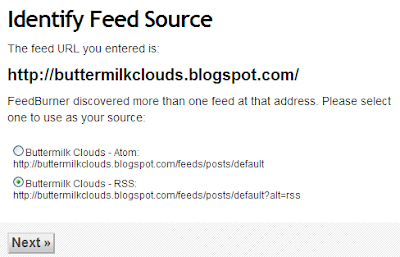
Since a website URL was typed in, FeedBurner looks for your feed. Sometimes you have two. In this case I selected the RSS option, then click next.


The next page gives you a chance to change the title of your feed, and shows you your feed address. If you are happy, click activate.
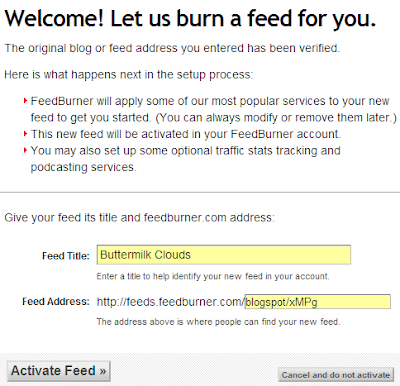


The next screen is the congrats stuff. I just click on Skip directly to feed management. That takes you to a screen with several tabs across the top of the page. Click on the Optimize tab. You will see a row of options in the left sidebar. Click SmartFeed and activate that service. This makes your feed compatible with all readers.
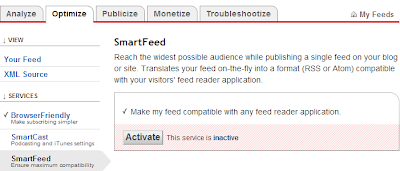
Before you go any further, look around. Click all the tabs and run down the left sidebar. There are many ways to customize your feed. When you are happy with what you have you are ready to Publicize your feed.

Select the Publicize tab and click Chicklet Chooser in the sidebar. This is where you choose the icon you want displayed and any additional readers you want displayed. (Remember, you don't have to show all the readers, the feed will automatically translate your feed into a format that can be used by your visitors' feed reader application.)
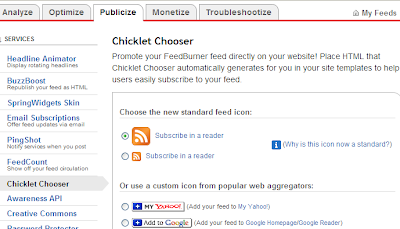


Scroll down the the bottom of the page and select Blogger. Copy this code. It is what you will paste in your sidebar widget.
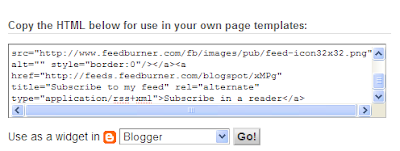


To put it in your blog, open Dashboard | Template | Page Elements | Add a Page Element | HTML/JavaScript. Paste that code in the window. Save and you have a shiny new feed for your blog!!

Oh, by the way, if you want to use your own RSS feed icon, that is easily done. Do you see the png file in the above image? Upload your image to your webhost (I use RipWay) and then replace http://www.feedburner.com/fb/images/pub/feed=icon32x32.png with your own image location.

post signature

Tuesday, 14 August 2007

Group blogs: different color posts (From my inbox)


Could you tell me how to have different colours for different posters in a group blog.


Susan, I figured it out!! There are a couple of points to keep in mind.
  1. Each group member will have a code to paste in their post. OR you can paste all the codes in Dashboard | Settings | Formatting | Post Template and then each member will delete all but their code when posting. (Personally, I would go with pasting all the codes in the Post Template. Just seems easier.)
  2. Each member will have a correlating code in the CSS style sheet to address the code in the post. (It will all become clear in a moment...continue reading.)
First let's get the code into the CSS style sheet.

For Classic Blogger look for the <style> and </style> tags.
For Blogger Beta look for <b:skin><![CDATA[/* and ]]></b:skin> tags

Here is the code you will put between those tags.
#unique name {
margin:0px;
padding:0px;
background:XXXXXX;
color:XXXXXX;
font: 1.1em "Trebuchet MS",Trebuchet,Verdana,Sans-Serif; font-weight:none;
}
Items to pay attention to:
  1. For each member using the blog, add this code to the CSS style sheet with a unique name for each member. If you have ten members, you will add this code ten times in your template, with ten unique names.
  2. Assign a color to each member.
  3. This changes the font color if you want. If you want the font color to remain the same through out the blog, delete this line.
Second you will assign the following code to each member to put in their post editor window(or, as I said above, you can paste all the codes in Dashboard | Settings | Formatting | Post Template and then each member will delete all but their code when posting.)
<p id=unique name> Write your post here. </p>
It is important to make sure that each member uses their unique name.

To summarize:
  1. Each member will have a unique name (Joe, Jane, poster1, etc.)
  2. There will be a code reflecting the unique name for each member in the CSS style sheet.
  3. When posting, each member will have their code <p id=unique name>and</p> in the post editor and write their post between the tags.

That should cover it! All you groupies, enjoy!!!

post signature

Tuesday, 24 July 2007

Hide/Show, Expand/Collapse - post element

I have been waiting for the right idea to start posting again. Thanks to The.Red.Mantissa experimenting with a favorite hack, Hide/Show, Expand/Collapse - Navigation Element, I have found the inspiration for that post. She stuck part of the expand/collapse code into the post itself. Uses? Hide a spoiler, shorten an extremely long post, add a recipe, book excerpt, or in my case, codes. Brilliant. Here is how it's done. +/-
Follow the first two steps in the instructions given in Hide/Show, Expand/Collapse - Navigation Element. Then, when writing the post, add this code to the post editing box:
<a aiotitle="click to expand" href="javascript:togglecomments('UNIQUE NAME')">+/-</a><div class="commenthidden" id="UNIQUE NAME"><p>HERE IS WHERE YOU PLACE THE HIDDEN TEXT.</div>
Added bonus! If you plan on using this hack often in your posts, simply add it to the Post Template by going to the Dashboard/ Settings/ Post Template, and put it in that box. As a matter of fact, it is easier to put it there and if you don't use it for a post, simply delete the code for that particular post.

Edit: Please note that each post must have a unique name for that post. I'm just going to start numbering mine. ie post100, post101, post102, etc.

post signature

Sunday, 25 March 2007

Pullquotes to Break the Boredom

I have been wanting a new pullquote in the worse way, but I have been putting out fires all across the blogosphere, with no time for pullquote shopping!

...A pullquote is a nifty little item...

Well, it seems that tonight all fires have been extinguished. And surprise, surprise, I can actually make a change on my blog!

I have loved the blockquotes on Buttermilk Clouds ever since I started working with it. The lines are simple, elegant, and it sets off the text within the blockquote without distracting from the overall feel of the post. Tonight I started playing with the code to see if I could modify it enough to become a pullquote. The results are outstanding! (I get excited easily by the strangest things...when the code actually works the way I want, pullquotes, CSS...the list goes on.) So, here 'tis. As you can see, I made the font different, a bit larger, and centered.

To get your own new snazzy pullquote, open your Dashboard/ Template/ Edit HTML The following code goes in the CSS style sheet:

.pullquote {
float: right;
width: 150px;
margin: 5px 5px 5px 10px;
padding: 3px 0;
font: Verdana, sans-serif;
color: #555;
text-align: center;
font-size: 1.4em;
border-top: 3px double #ccc;
border-bottom: 3px double #ccc;
}
.pullquote p {
padding: 0;
margin: 0;
}
If you wanted a different color font, change this value. Change this value for a different size font. You can make the border solid, dotted or dashed and change the border color here. Save your template. Now, when you create a new post, put this code in the post editor window - or - a little tip: if you plan to use pullquotes often, or just don't want to go digging for code, you can automate this process. Open Dashboard/ Settings/ Formatting/ Post Template and paste this code there:
<blockquote class="pullquote"><p>...THIS IS YOUR PULLQUOTE TEXT...</p></blockquote>

<p>TYPE POST HERE...
A pullquote is a nifty little item. Why? Because, everyone reads them! And that is that. Have fun!

post signature

Saturday, 10 February 2007

How to Make a Post Signature Using GIMP

Due to popular demand (Hi, Sissy!), I'm going to do a basic tutorial on using GIMP to make a post signature. So, if you don't have it, now is the time to download GIMP. While making your signature, keep in mind I'm not a GIMP expert, so this will be a very basic guide.

Let's get started! Open GIMP. This is what you will see.


You will notice all the icons at the top of the program. These are your tools. The brush is already indented. For the purpose of this tutorial, we are going to leave the brush choices alone, but if you care to change the brush size, texture or color, that is done in the lower half of the program. Change color by clicking on the black square that is over the white square and choose a color. Below that are a couple of areas that change the Mode (texture, design) of the stroke and Brush (brush style).

But, let's get back to making the sig. At the top click on File/ New and a 'Create a New Image' box opens. Here you can either select a template size or put your own in the 'Width/ Height' windows. I put in 300 x 50 for this tutorial. Click on 'OK' and that window closes and a new pallet opens called 'Untitled'. Not original, but it works!


Back to the top of the program. (see the next illustration)
  1. Click on the T which opens up the 'Text Editor'
  2. Choose your font, color and size in the lower part of the program (the big fat red E)
  3. Put your cursor in the 'Text Editor' box and type your text. As you type you will see the text forming in the 'Untitled' box. You may have to adjust your size at this point. (look in the big red E)
  4. Another adjustment you will probably have to do is move the text around in the 'Untitled' box. To do this, in the upper part of the program (close to the T) click on the crossed arrows icon. The portion you move (called a layer) is within the orange and black dashed line.
  5. Put your cursor in the 'Untitled' box. It will do a number of strange things here. But, when you see it turn into an arrow and a diamond with 4 tiny squares, you can move that layer. If you mess up, just click on Edit/ Undo Move Layer in the 'Untitled' box. Try again.

Now all that is left to do is save your creation! You'll want to choose a file extension (I like png). It will probably say that "PNG can't handle layers"...click Export and next box OK. Believe me...it will be OK. Here is the one I made for this tutorial.

If you look at this post, Blogger Beta - Post Signature , it shows you how to put your signature in every new post!


post signature

Monday, 5 February 2007

Blogger Beta - Post Signature

I felt like something fun today. I wanted to pretty up my posts. Shane asked me if putting a signature in your post is possible. Well, it is, and here is one way of doing it!

You must first have a signature that you want to have at the bottom of your post. This signature will be in the form of an image. To get that image, you can look online for sites that help create signagtures, or you can make your own using GIMP as I did. If you need help making a signature, read some of my posts on design and graphics. After you have your signature, upload it to your web host...I use Ripway.

Open your Dashboard/ Settings/ Formatting/ Post Template. Put this code in the Post Template box:
<p><image class="centered"alt="post signature" src="SIGNATURE URL" /></p>
You can see my beautiful results below!

post signature

Friday, 15 December 2006

Pretty Blockquotes

In the spirit of making the blogosphere a better (ie prettier) place, here are a couple of ways to dress up the lowly blockquote. This is the code for my simple blockquote:
.post blockquote {
margin:1em 20px;
}
.post blockquote p {
margin:.75em 0;
}
blockquote {
background:#EFEFF7;
}
Mine is very simple for a reason. (Not that I don't want wild and wonderful...it just would confuse my readers.) My blockquote is actually a design element that gently separates areas of code from the blog post it's self. That way my readers can see the code that needs to be copied at a glance...no guessing needed. I picked a soft color because codes can make you crazy, and tranquil blue is my way of offsetting any craziness!

One of my favorite blockquotes is with a big chunky quotation mark. I found this fun little blockquote in a theme designed by Fauxzen at Blogger Templates.
Here is the code that you paste into your CSS style sheet (between <head> and </head>):
blockquote {
background-position:-10px -7px;
border: 1px dashed #FFC600;
margin: 20px 10;
padding: 0 20px 0 50px;
background: url("QuoteImage.URL") 5% no-repeat #FFF8DD;
}
<-- This is the image you will need. Right click it then save to your desktop. Upload it to your webhost. I use Ripway. After uploading, put the URL in the above code.

Here is one more. I use it on Buttermilk Clouds. It is simple in a fancy way. I'm changing the color here so you can see a variety. The great thing about this blockquote is you don't need an image to save and upload. It is all done with smoke and mirrors!
Once again, here is the code that you paste into your CSS style sheet (between <head> and </head>):
blockquote{
background-color: transparent;
border-top: 3px double #DC143C;
border-bottom: 3px double #DC143C;
padding: 5px;
font-style: oblique;
font-size: 1em;
margin-left: 5%;
margin-right: 5%;
}
If you want a different color, find one on this fantastic color chart then put that color code in place of #DC143C in the code above.

I'm going to stop for now. But, this is really fun, so I will probably do more of this type of thing in the future. Especially if I see much interest in it. Let me know!

Update: 1/16/07 I forgot to mention that you should replace the old blockquote code in the CSS style sheet with the new code in this post.

post signature

Painless Blog Posting

Did you know that Blogger (beta and orginal flavors) both have a built in setting that takes some of the hassle out of posting? The feature that I have in mind is found on the dashboard under Settings/ Formatting/ Post Templates. For example, on this blog, I often use a pullquote. So, I take this code:
<p class="pullquote">
<span >Title</span>
<span >"</span>
Text
<span style="font-size:large;">"</span>
</p>
and paste it in the Post Templates box. After I save the settings, the code is in place. When I write a post, I type in the Title and Text of the pullquote. Automatically, I will have a pullquote in my post. (Assuming I have the correct code in place in my CSS style sheet. See Visual Interest - Pullquotes for simple instructions.) You can then cut and paste the code to the area of the post you want it to show up.

On my other blog, Buttermilk Clouds, I always start the post with a photograph. So, in that blog's Post Template box I add this code:
<image class="centered"alt="title" src="URL" />

Post templates help users save time by pre-formatting the post editor.

All I have to do is put in the image URL and write the title of the picture.

This speeds up the posting process and makes posting a breeze. I can never remember the simpliest of codes, and I was forever looking up the code. Now, all my most used codes are in place and waiting.

On the chance I don't want a pullquote or a photo, all I do is delete the code from the post box when I create a post. A simplier process than looking for code to put in!


post signature

Saturday, 22 April 2006

Visual interest - Pullquotes

Sometimes text needs a little help to make it more interesting. Graphics works miracles in this department. But often you don't have a graphic that you can use. Jazzing up your text is an excellent option. I discovered a way to liven

Mandarin Design
"The exact placement of the pullquote is up to you but you will want to make sure that you have typed in a long enough post that actually needs some pullquotes to make it more interesting."

things up a bit with something called "Pullquotes" from Mandarin Design. The colored box on the right side of this post with content is an example of a pullquote. It very much resembles a magazine layout. This method works especially well on longer posts. Here is another example that I put in a post, The Category Adventure.

Add this to your style sheet or add it to the HEAD section of your template:
.pullquote {
width: 145px;
background:#A3C586;
color:black;
float: right;
border:1px dotted #5B7444;
font-weight:bold;
line-height:140%;
padding:5px;
margin-top:10px;
margin-left:10px;
}

Then add this to your post itself:
<p class="pullquote">
<span >Mandarin Design: Easy CSS Pullquotes</span>
<span >"</span>
The exact placement of the pullquote is up to you but you will want to make sure that you have typed in a long enough post that actually needs some pullquotes to make it more interesting.
<span style="font-size:large;">"</span>
</p>
Play around with this until you find colors and fonts that you like. The color in the box can easily be changed by modifying the code in the style sheet "background:#A3C586;" to whatever color you want. I changed the background color to a green and the 'heading' font inside the pullquote to white. The possiblities are endless. There are more pullquotes at Mandarin Design if you would like to try another style.

post signature